App Screens Overview
Below you’ll find descriptions of the two main screens in Talons Studio: Dashboard and Console Session.
Each numbered label corresponds to the screenshot provided.
Dashboard Screen
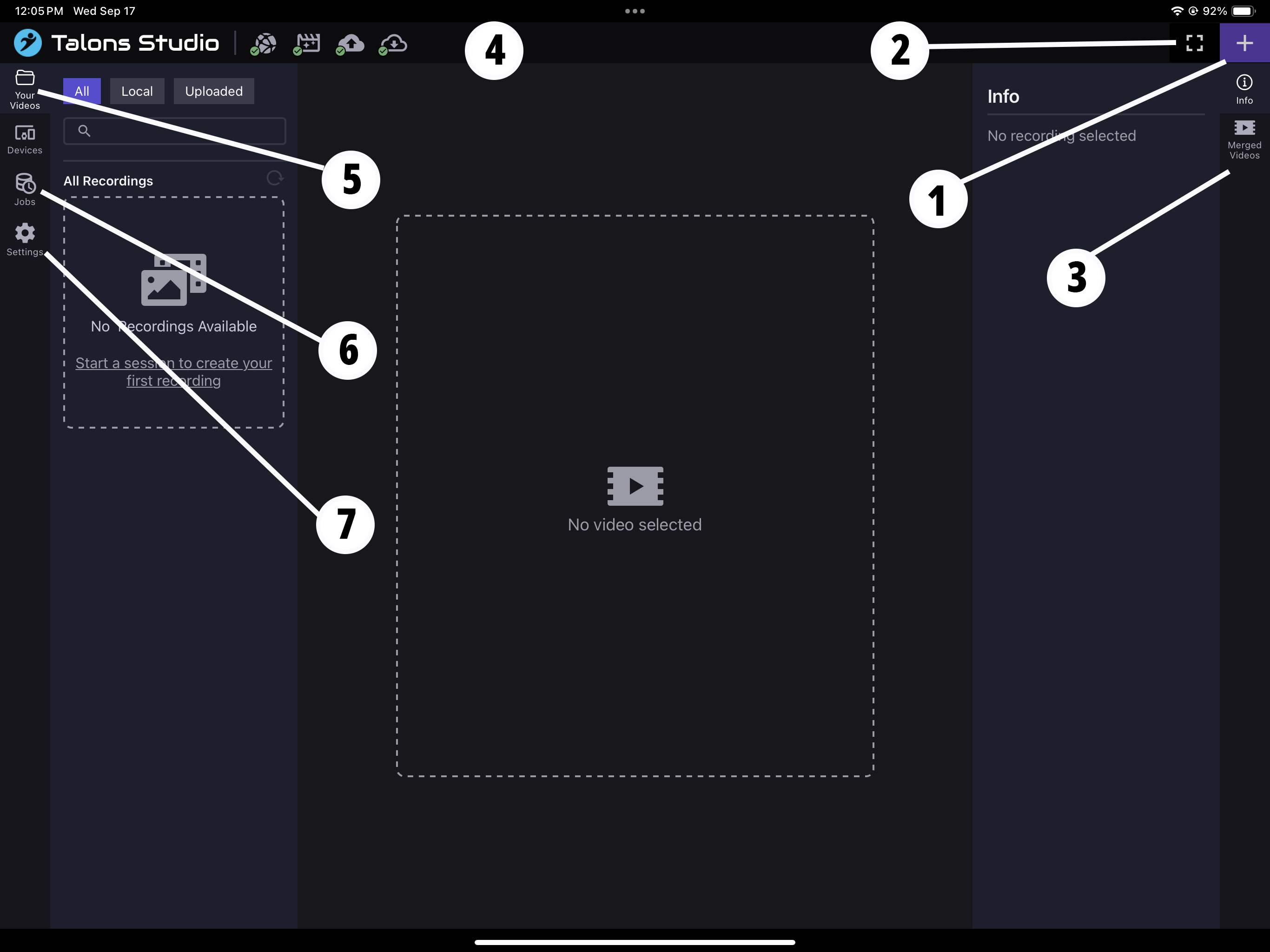
When you first log in, your Dashboard will be empty. The main sections are:
- Start New Session
Opens a modal to begin a new session. - Show/Hide Side Panels
Toggles side panels on or off for more space. - Merged Videos Listing
Displays merged videos for the selected recording.
Also the panel where you merge videos together. - Show Statuses
Displays current jobs such as uploads, downloads, or merges, including whether they’re paused. - Recordings
Shows all recordings from your sessions.
(This is the default screen after logging in.) - Jobs
Shows the status and progress of merge, download, and upload jobs. - Settings
Manage your account settings, reset configurations, or delete recordings.
Also contains the Sign Out option.
Console Session Screen
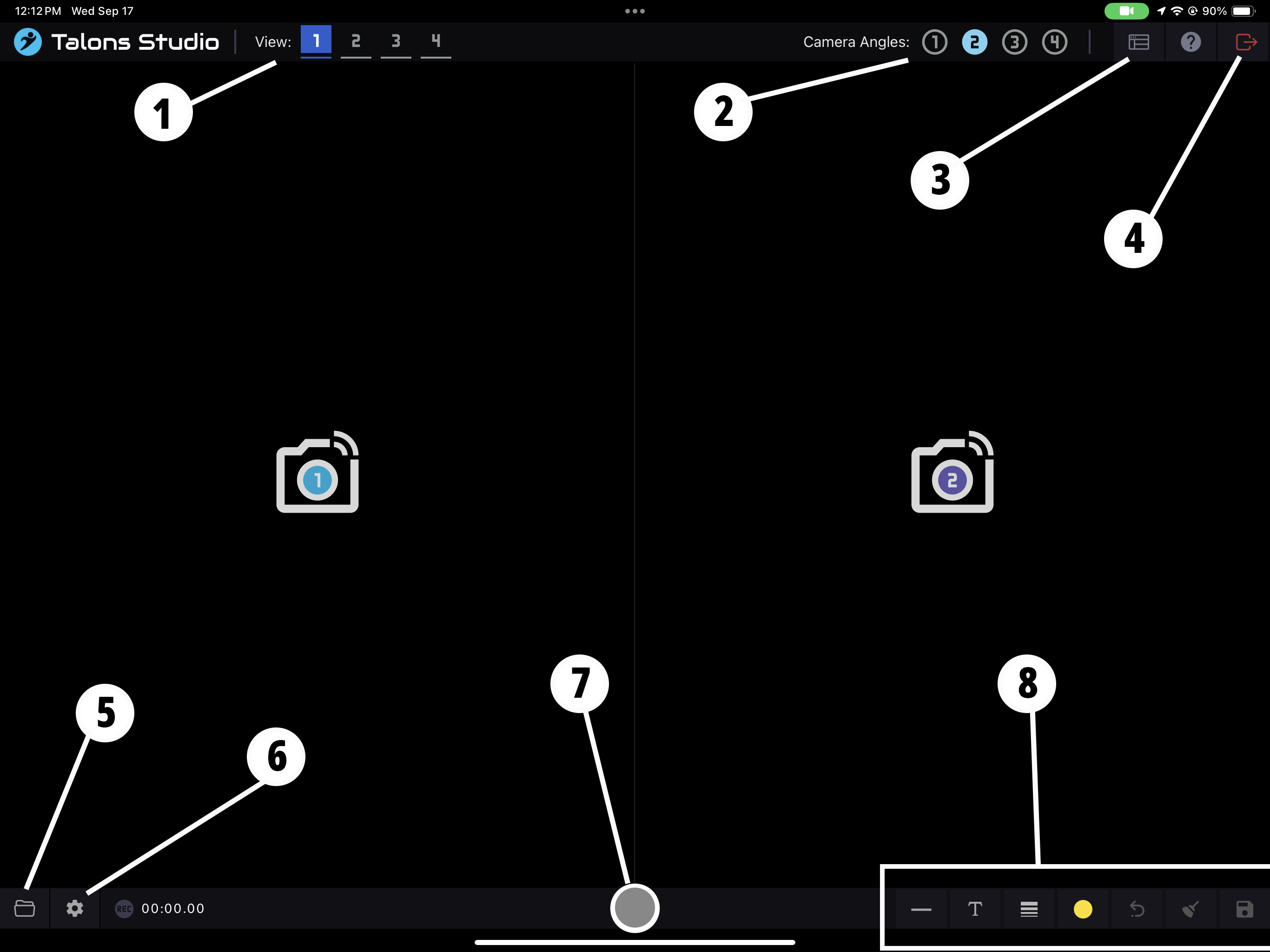
The Console Session screen is where you control live recording sessions.
- Views
Select different camera angle layouts/combinations. - Camera Angles
Choose how many camera angles you want for the selected view. - Show/Hide Connected Cameras
Opens a panel showing cameras that are connected but not yet assigned to a view. - End Session
Ends your session (only works when not actively recording).
If it gets stuck, go to Settings (#6) and select Reset Cameras.
- Recordings
Access all recordings from your current session. - Settings
Adjust session and recording settings.
Also includes the option to reset cameras stuck in “Recording” mode. - Record Button
Start recording once all camera angles are connected.
You can also record from another view you aren’t actively looking at. - Drawing Tools
Add live overlays (lines, guides, etc.) while practicing.
Overlays are not saved in the actual recording — they are for live feedback only.
 With these two screens, you can easily manage sessions, recordings, and feedback overlays.